0 cable
Free to move
A USB cable once to install the headset app, then never again.


PC VR · Meta Quest · Wireless
Play your PC VR games on your Quest wirelessly, over Wi-Fi, just like with Virtual Desktop. Open the app in the headset: SteamVR starts on its own on the PC and your game library appears in front of you.
Why wireless
Turn, jump and play standing anywhere in the room with no cable to trip over. SunQuest sends the image over your Wi-Fi and checks that your network can keep up. Wi-Fi not great? LunaQuest does the same over a USB cable.
A USB cable once to install the headset app, then never again.
Open SunQuest in the headset: the PC hears it on the network and starts SteamVR on its own.
A light window that waits for your headset next to the clock, without the Meta PC app.
Features
SunQuest waits in the background on the PC. Open the app in the headset and SteamVR starts: nothing to click on the PC.
Your VR games with their cover art, most recently played first. Aim, pull the trigger, it launches. One button closes the running game.
The PC's network, the headset's Wi-Fi (band, signal, speed), a ping test and the recommended video bitrate, applied in one click.
Plug the headset in once and click Pair: SunQuest installs the headset app, keeps the headset awake and reads its Wi-Fi, with no cable.
Frame rate, bitrate, codec, resolution, sound, microphone and per-game presets, without opening ALVR. The Windows firewall is opened for you.
Double-press the left menu button: your Windows desktop appears in front of you, with the laser pointer as a mouse.
New · 0.1.0
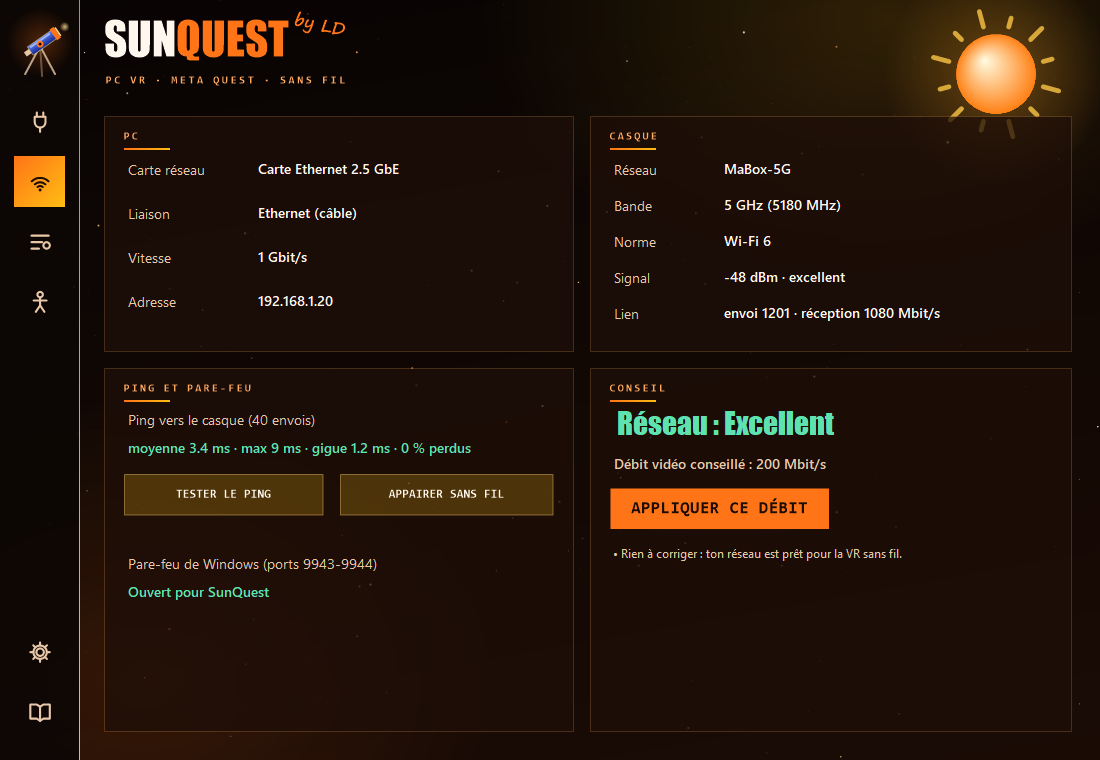
A smooth wireless image depends mostly on your network. The Wi-Fi tab tells you what's fine, what's wrong, and which video bitrate to use.
Ethernet or Wi-Fi, network card speed. SunQuest warns you if your PC is on Wi-Fi: a cable to the router changes everything.
Network, 2.4 / 5 / 6 GHz band, standard (Wi-Fi 5, 6, 6E, 7), signal in dBm and link speed, live.
A ping test to the headset (average, peaks, jitter, loss) and opening ALVR's ports in the Windows firewall.
A score for your network, the tips to follow and the right video bitrate, applied in one click in the settings.
Full body
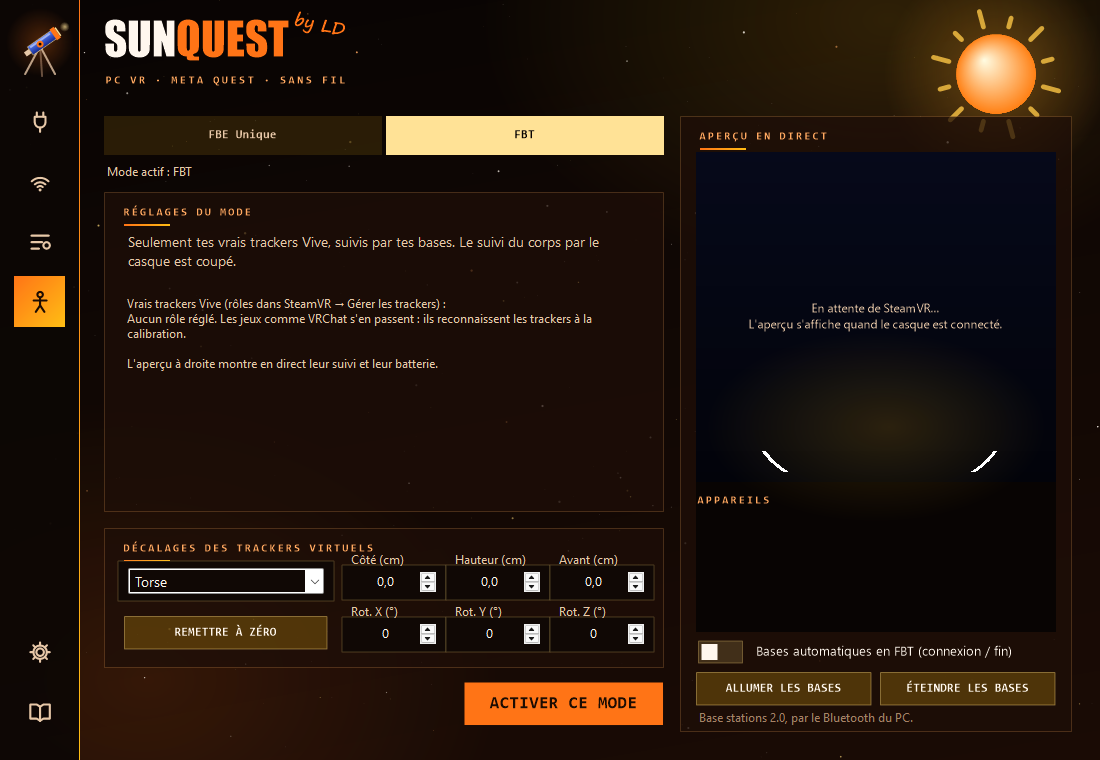
LunaQuest's FBE modes are in SunQuest too: virtual trackers for your body, or your real trackers, with a live 3D preview of every device.
Your whole body estimated by the Quest's cameras: chest, hips, elbows, knees and feet. No trackers to buy.
Only your real trackers (Vive, Tundra…) and your base stations, with the live preview and each tracker's battery.
Turn your 2.0 base stations on or put them to sleep through the PC's Bluetooth. In FBT, they turn on by themselves when you connect.
Preview
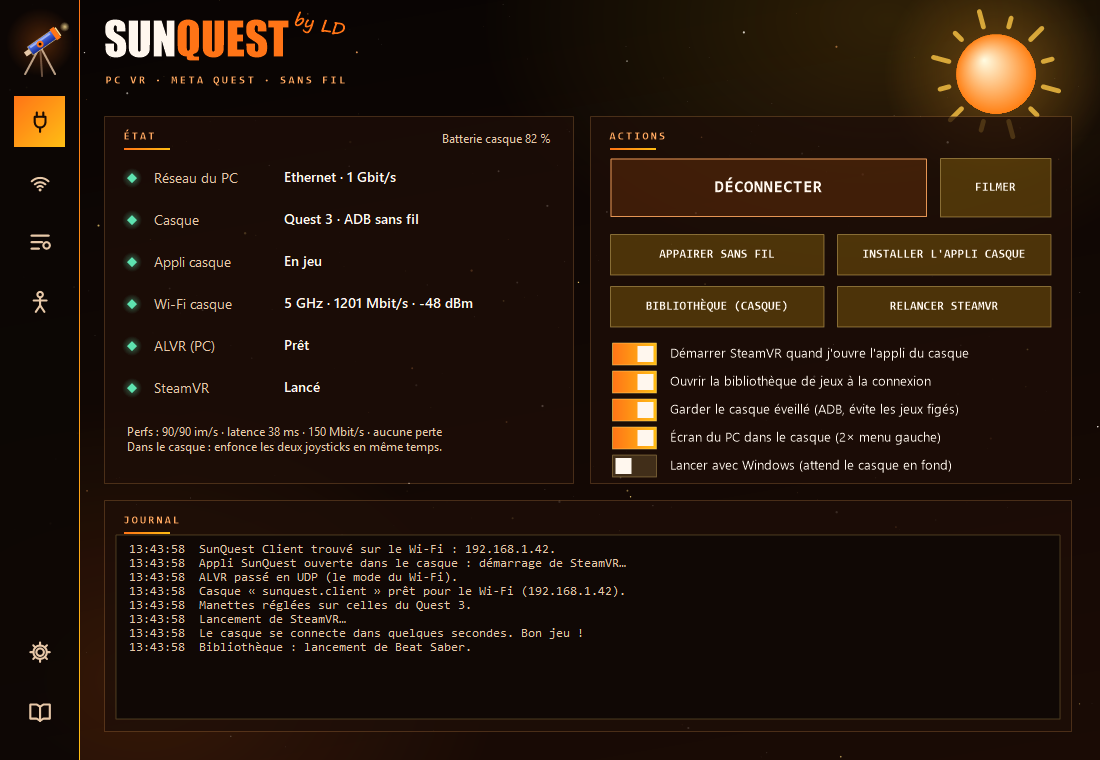
Connection: the PC's network, the headset, its Wi-Fi, ALVR and SteamVR live, the big Connect button, the options and the log.
Performance
SunQuest uses your graphics card's video encoder, like LunaQuest. Wireless, what matters most is your network: the Wi-Fi tab tells you where you stand.
To start with, 120 Hz with a good PC and good Wi-Fi.
Recommended bitrate on Wi-Fi 6, right next to the router.
Once the headset app is installed.
These are the values SunQuest's Wi-Fi tab recommends. They change with your router, walls and other devices.
| System | Windows 10 or 11 |
| Graphics card | SteamVR compatible. An RTX 3060 already does the job very well. |
| Headset | Meta Quest 2, 3, 3S or Pro, in developer mode |
| Network | PC plugged into the router over Ethernet, headset on 5 GHz Wi-Fi (Wi-Fi 6 ideal) |
| Cable | USB-C just once, to install the headset app |
| Software | Steam and SteamVR (free). ALVR is included. |
SunQuest works, but it's still being polished: your feedback helps improve it.
Reviews
A bug, an idea, feedback on your games? Leave a comment. The comment section is shared by LunaQuest and SunQuest, with the same account.
The comment section is coming very soon.
Create a free account to comment, with your username or anonymously.
No comments yet. Be the first!
Support
No. SunQuest goes through ALVR and SteamVR, both free. Neither Virtual Desktop nor the Meta PC app is needed.
The PC plugged into your router over Ethernet, and the headset on 5 GHz Wi-Fi (ideally Wi-Fi 6 or 6E), in the same room as the router if possible. The Wi-Fi tab checks everything.
Use LunaQuest: the same app, but the image goes through a USB cable instead of Wi-Fi. Both install side by side.
Check that the PC and the headset are on the same network (not the router's guest Wi-Fi), that the firewall is open (Wi-Fi tab) and that SunQuest is running on the PC. Otherwise, type the headset's IP address in ALVR settings.
Open the Wi-Fi tab: PC on Ethernet, headset on 5 GHz, then apply the recommended bitrate. Stop downloads while you play.
Open Settings (the gear icon at the bottom left), choose English, and let SunQuest restart.